Sharper Printed Details
High-resolution files help fine lettering, outlines, textures, and illustrated features remain clear after printing.
Follow these DTF artwork requirements to prepare sharp, correctly sized designs with clean backgrounds, dependable colors, and details that transfer beautifully to apparel.
Great transfers begin with a properly prepared file. The right setup helps prevent blurry graphics, unwanted background boxes, rough edges, missing details, incorrect dimensions, and avoidable production delays.
Your uploaded design becomes the foundation of the finished transfer. Starting with clean artwork allows SpeedE Transfers to reproduce your logo, illustration, lettering, or merchandise design more accurately.
High-resolution files help fine lettering, outlines, textures, and illustrated features remain clear after printing.
Artwork prepared at its intended dimensions reduces uncertainty and helps each transfer fit the target garment area.
Print-ready files require fewer corrections, helping an order move from upload to production more efficiently.
Review each rule before submitting your artwork. A few minutes of careful preparation can improve the quality and consistency of the finished transfers.
Prepare raster files at 300 DPI at the final print dimensions whenever possible. Low-resolution images can appear soft or pixelated when enlarged.
Submit artwork with a genuinely transparent background unless the background is an intentional part of the design. A white canvas is not automatically transparent.
Size the artwork according to the width and height you want printed. Preserve its original proportions instead of stretching it to fit.
Inspect the image at high zoom for stray pixels, white halos, rough cutouts, and background fragments that could print with the design.
Convert editable text to outlines or shapes before exporting. This prevents font substitution and preserves the intended typography.
Extremely thin strokes and tiny isolated details may not print or adhere reliably. Strengthen delicate elements while preserving the overall design.
Screen and printed colors can differ. Monitor settings, fabric color, transparency, and file preparation may influence the final appearance.
A file can display a 300 DPI setting and still lack usable detail if the original image was small or blurry. For the best result, create artwork at its final dimensions with sufficient original resolution.
For example, a design intended to print 12 inches wide should be prepared at 12 inches wide and 300 DPI whenever possible. Simply enlarging a small internet image does not restore missing detail.
Adobe also provides a helpful explanation of image resolution and pixel dimensions. This external resource can help you understand why the original image size matters.
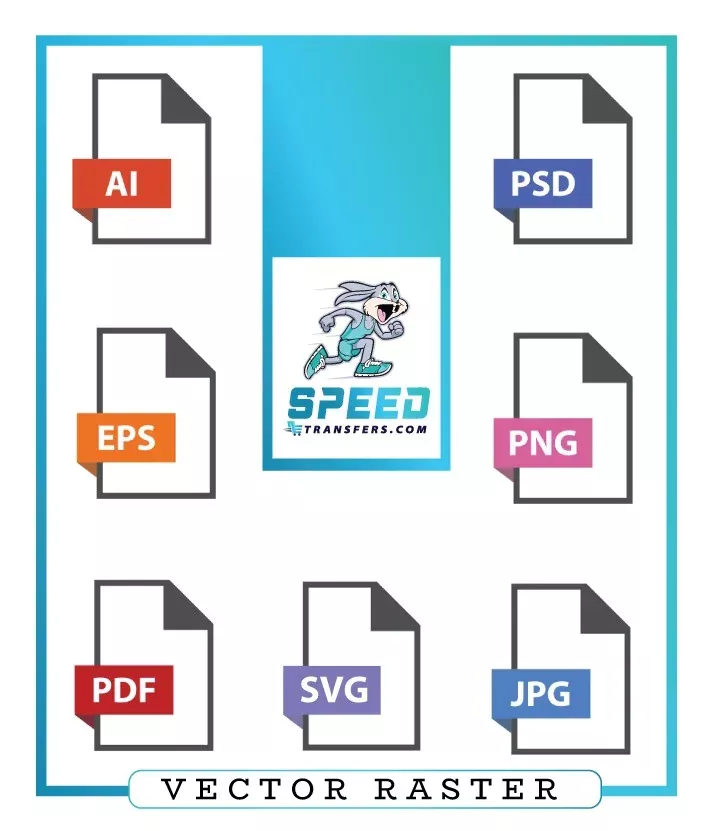
The ideal format depends on how the design was created. Select a file type that preserves transparency, dimensions, and visual detail without unnecessary compression.
| File Format | Best Use | Preparation Notes |
|---|---|---|
| PNG | Raster graphics with transparent backgrounds | Export at the final print size and 300 DPI whenever possible. |
| Print layouts and vector-based artwork | Embed the artwork, preserve its dimensions, and outline fonts. | |
| SVG | Logos, lettering, and scalable vector graphics | Expand special effects and confirm that every element displays correctly. |
| AI or EPS | Editable professional vector artwork | Outline fonts and include any linked artwork required for production. |
| PSD | Layered raster artwork | Confirm the dimensions, transparency, and final visible layers. |
| JPG | Flattened artwork with a deliberate background | JPG does not support transparency and may include compression artifacts. |
DTF printing can produce vibrant results, but printed color may not match every screen exactly. Displays use emitted light, while transfers use printed ink that is later applied to fabric.
Avoid relying on extremely subtle transparency unless it has been converted into a printable halftone. Carefully review gradients, glows, shadows, distressed textures, and soft edges.
When color accuracy is especially important, use consistent reference values and consider testing a smaller order before beginning a large production run.
The problems below can reduce print quality or delay an order. Inspect the entire design instead of checking only its most noticeable elements.
Complete this inspection before adding your design to a gang sheet or uploading a finished layout.
Find answers to frequent questions about image quality, backgrounds, formats, sizing, fonts, and special effects.
Raster artwork should generally be prepared at 300 DPI at its final intended print size. A lower-resolution file may print acceptably in some cases, but 300 DPI provides a stronger starting point for sharp detail.
Yes, when you want only the design elements printed. If the artwork includes a white or colored background, that area may become part of the transfer unless it is removed.
A high-resolution transparent PNG is a practical choice for raster artwork. Vector files such as SVG, AI, EPS, or a properly prepared PDF are useful for logos and scalable graphics.
It may be possible, but screenshots and small web images often lack enough detail for a sharp transfer. Original vector artwork or a larger high-resolution image will usually provide better results.
Yes. Converting text to outlines or shapes prevents missing-font substitutions and preserves the intended lettering, spacing, and layout.
Many gradients and shadows can be reproduced, but semi-transparent effects may require halftone preparation. Inspect those areas carefully or request assistance before production.
Measure the available print area on the actual garment and prepare the design at the desired width and height. Garment size, seams, collars, pockets, zippers, and style can affect the usable area.
Follow these DTF artwork requirements, review your finished file, and select the ordering method that works best for your project.